

Engram Web Console
The Engram console is a graphical interface for inspecting and managing your Engram projects in Weaviate Cloud. Browse memories, users, and runs, manage API keys, and review your project's groups and topics, all without writing code.
To open it, sign in to Weaviate Cloud, select the Engram product from the top navigation, and choose a project. The left-hand menu gives you access to the Dashboard, Users, Memories, Runs, API Keys, and Plans pages.
Dashboard
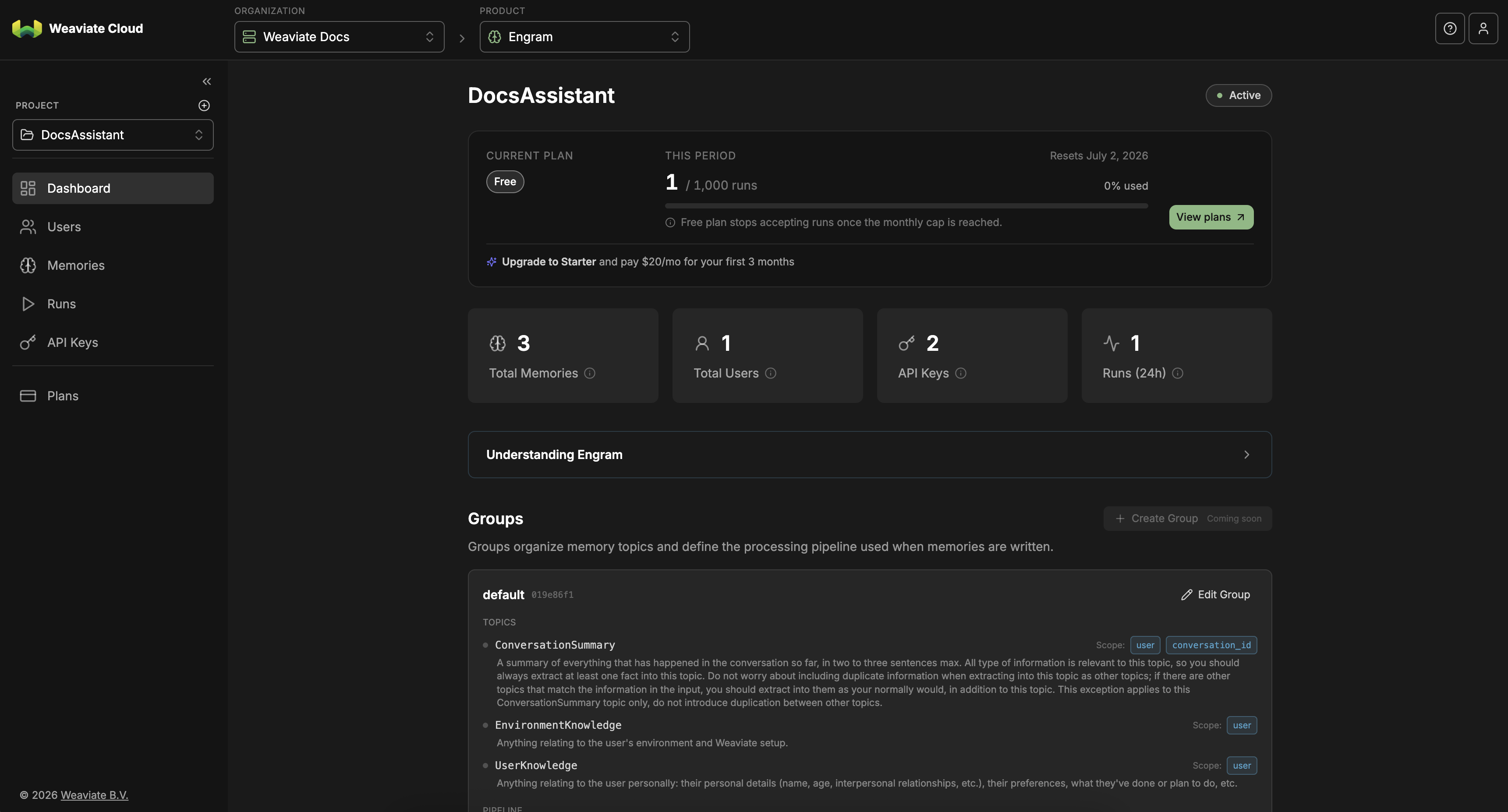
The dashboard is the overview for the selected project. The top of the page shows your current plan and usage for the period, including how many runs you have used against your monthly cap.
The summary cards report the project's totals: memories, users, API keys, and runs in the last 24 hours.
The Groups section lists the project's groups and the topics in each one. For every topic you can see its description and its scope requirements, such as user or conversation_id. Use Edit Group to review a group's configuration.
Groups and topics are defined when a project is created. Editing them in the console is read-only for now, and creating new groups from the console is coming soon.
Users
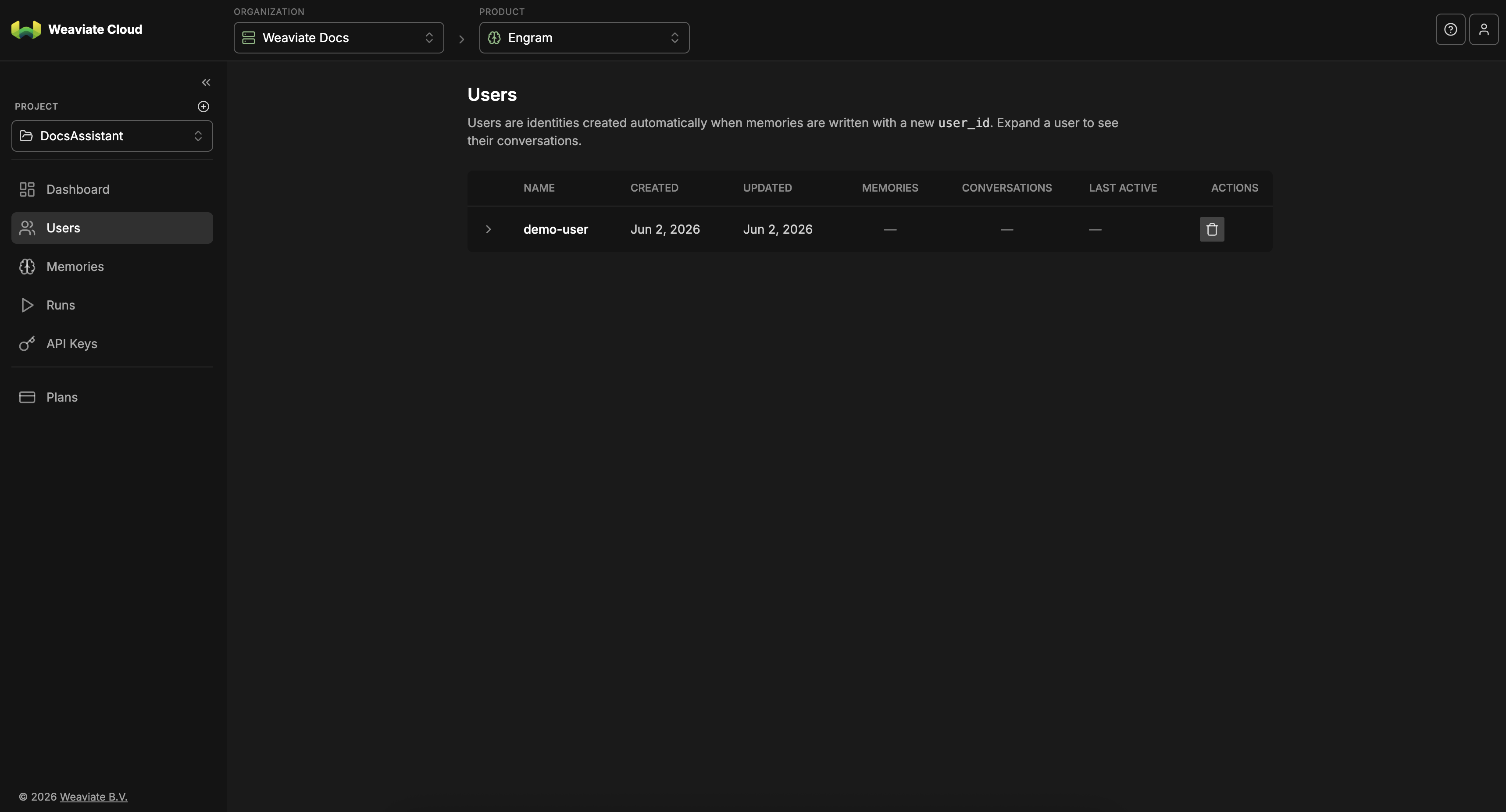
A user is created automatically the first time a memory is written with a new user_id. The Users page lists every user in the project.
Each row shows the user's name (user_id), when it was created and last updated, how many memories and conversations it has, and when it was last active. Use the action on the right of a row to delete a user and its memories.
Memories
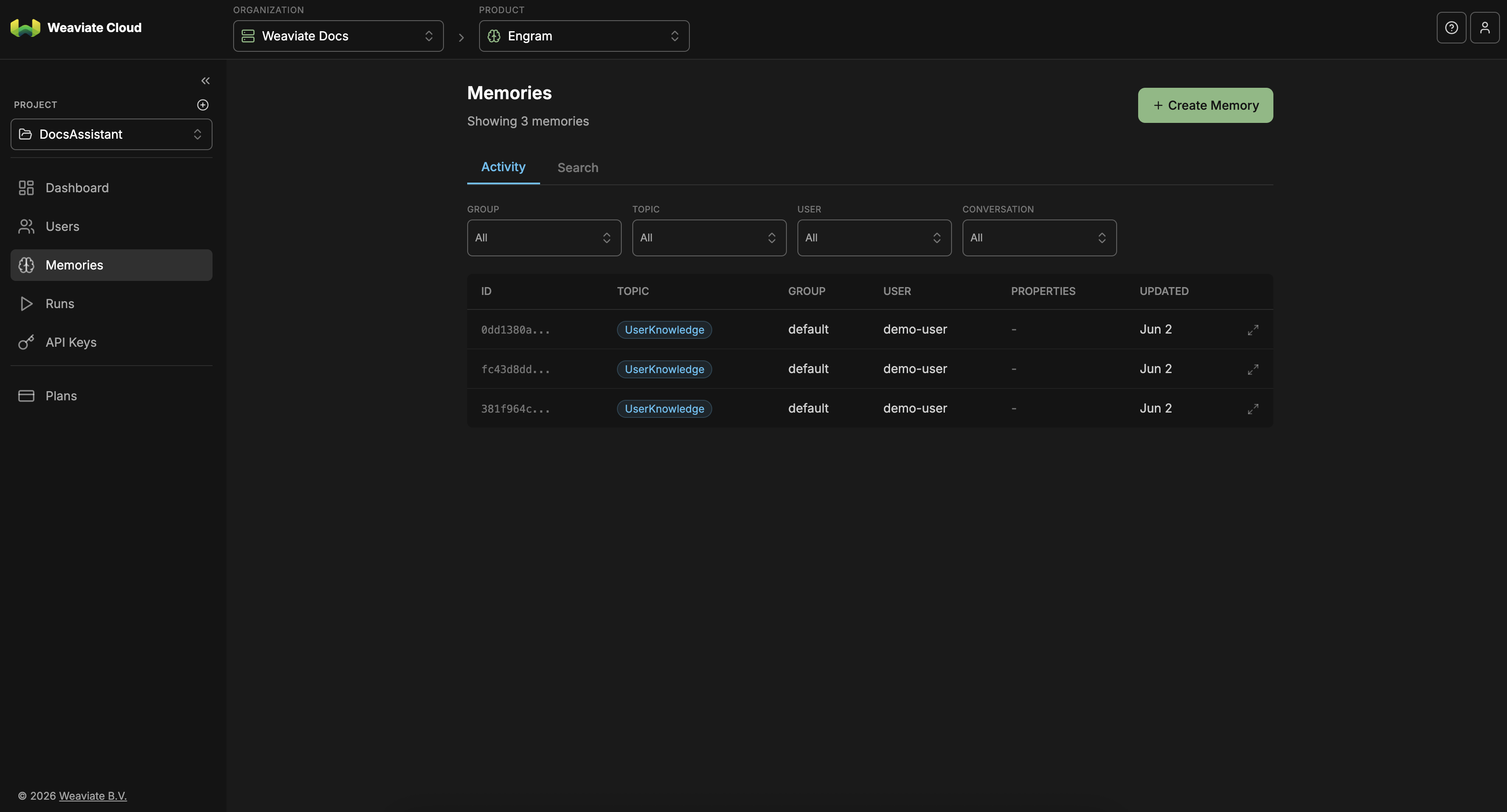
The Memories page lists the memories stored in the project. The Activity tab shows recent memories, and the Search tab lets you run a query against them.
Filter the list by group, topic, user, or conversation using the dropdowns at the top. Each row shows the memory's ID, topic, group, user, properties, and when it was last updated. Use Create Memory to add a memory directly from the console.
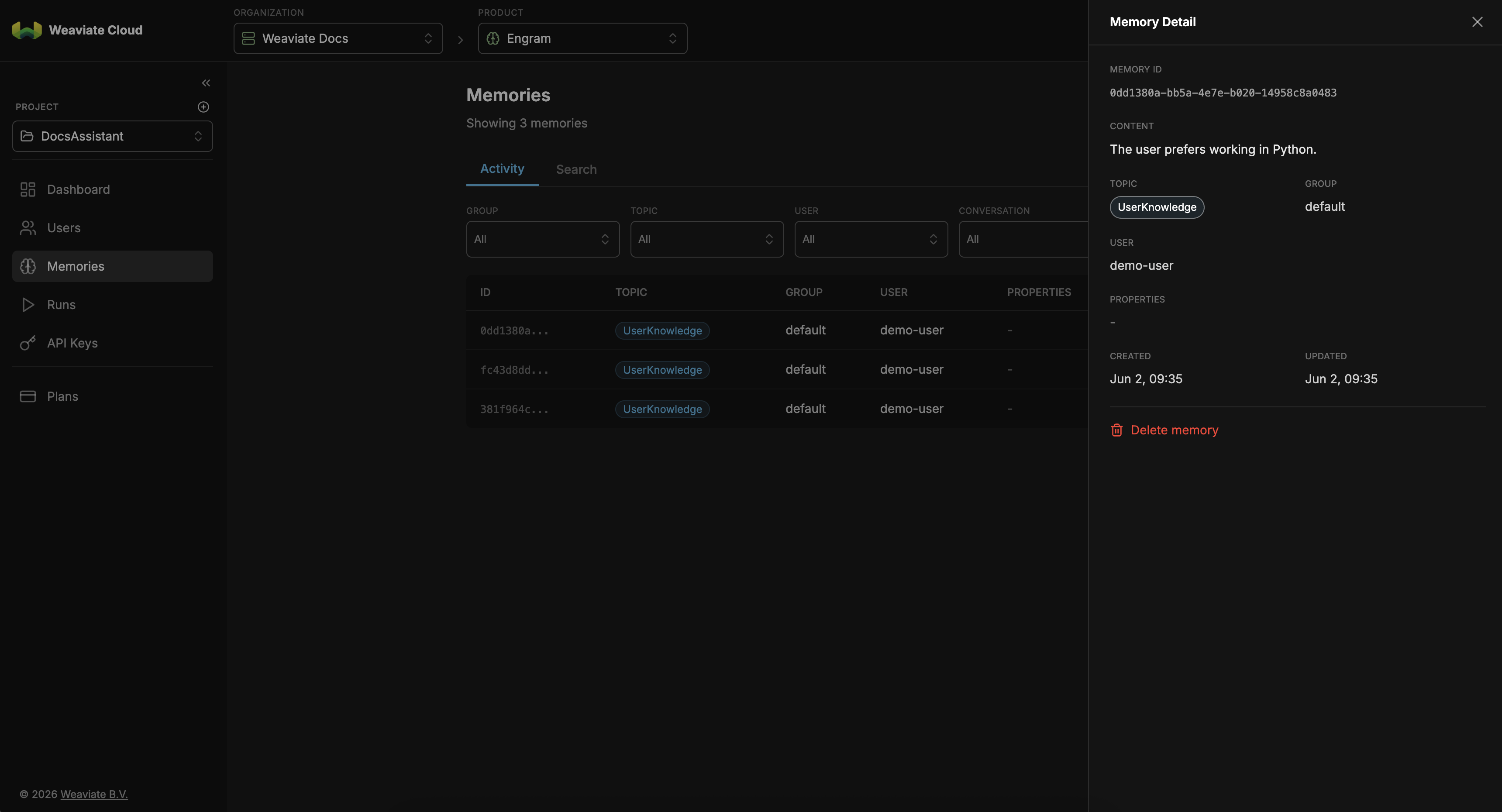
Select a memory to open the Memory Detail panel. It shows the memory's full content along with its topic, group, user, properties, and created and updated timestamps.
Use Delete memory in the panel to remove a single memory.
Runs
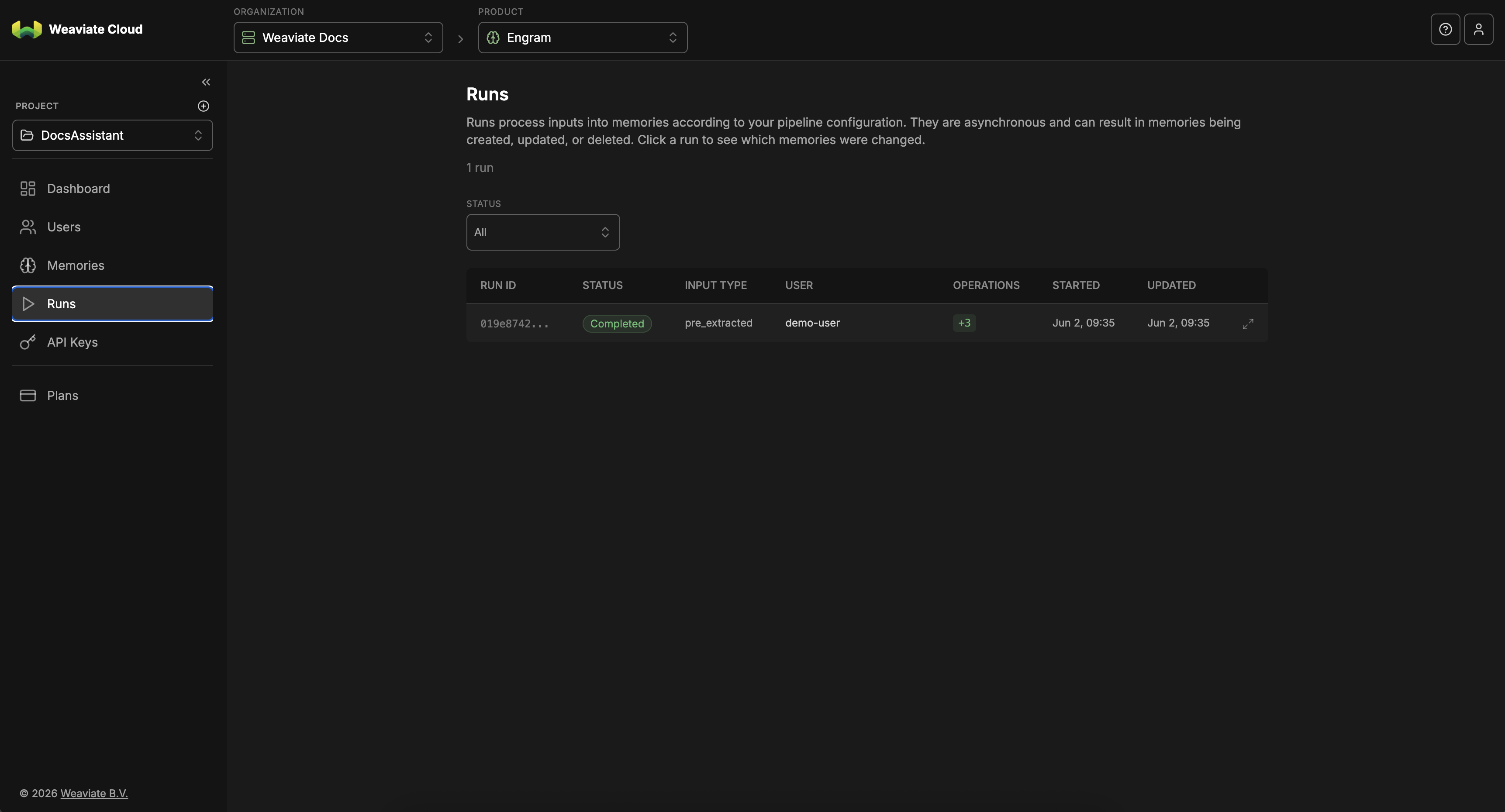
Every time content is sent to Engram, it runs through an asynchronous pipeline that can create, update, or delete memories. Each of these executions is a run.
The Runs page lists recent runs and lets you filter by status. Each row shows the run ID, status, input type, user, the number of memory operations, and when it started and finished.
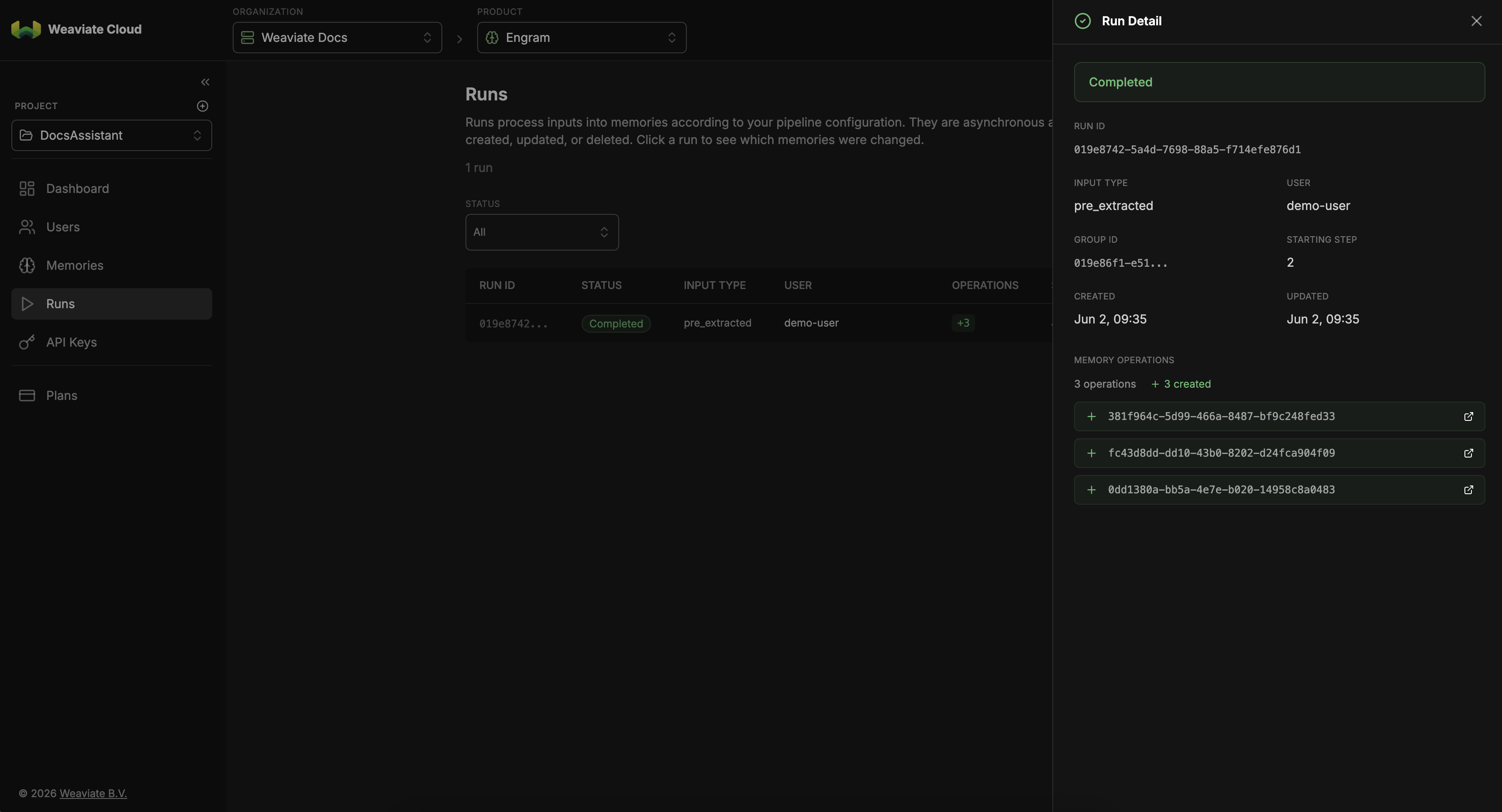
Select a run to open the Run Detail panel. It shows the run's status, input type, user, group, and starting step, along with timestamps.
The memory operations section lists the memories the run created, updated, or deleted, so you can trace exactly what changed.
API Keys
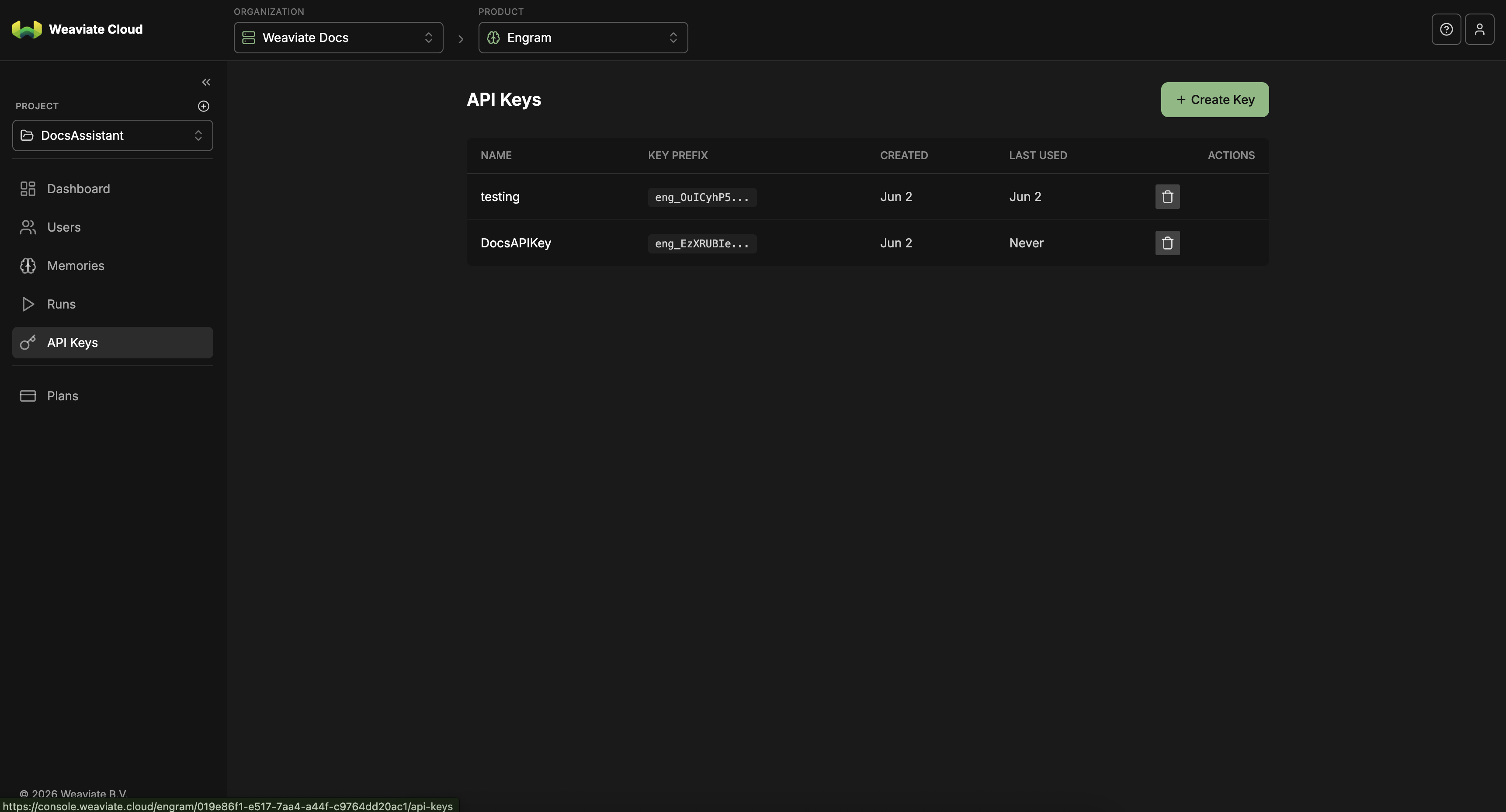
API keys authenticate your application with a project. The API Keys page lists each key by name, with its key prefix, when it was created, and when it was last used.
Use Create Key to generate a new key. The full key is shown only once, so copy and store it securely. Use the action on the right of a row to delete a key.
Plans
The Plans page shows your current plan and lets you upgrade. Your plan determines limits such as the number of pipeline runs allowed per month. When a free plan reaches its monthly run cap, new runs are rejected until the cap resets.
Questions and feedback
Have a question or feedback? Here's how to reach us.